Since eddev@0.2.0, favicons are automatically included in every page, in both serverless and WordPress. All you need to do is export the icons straight from Figma!
Exporting the icons#
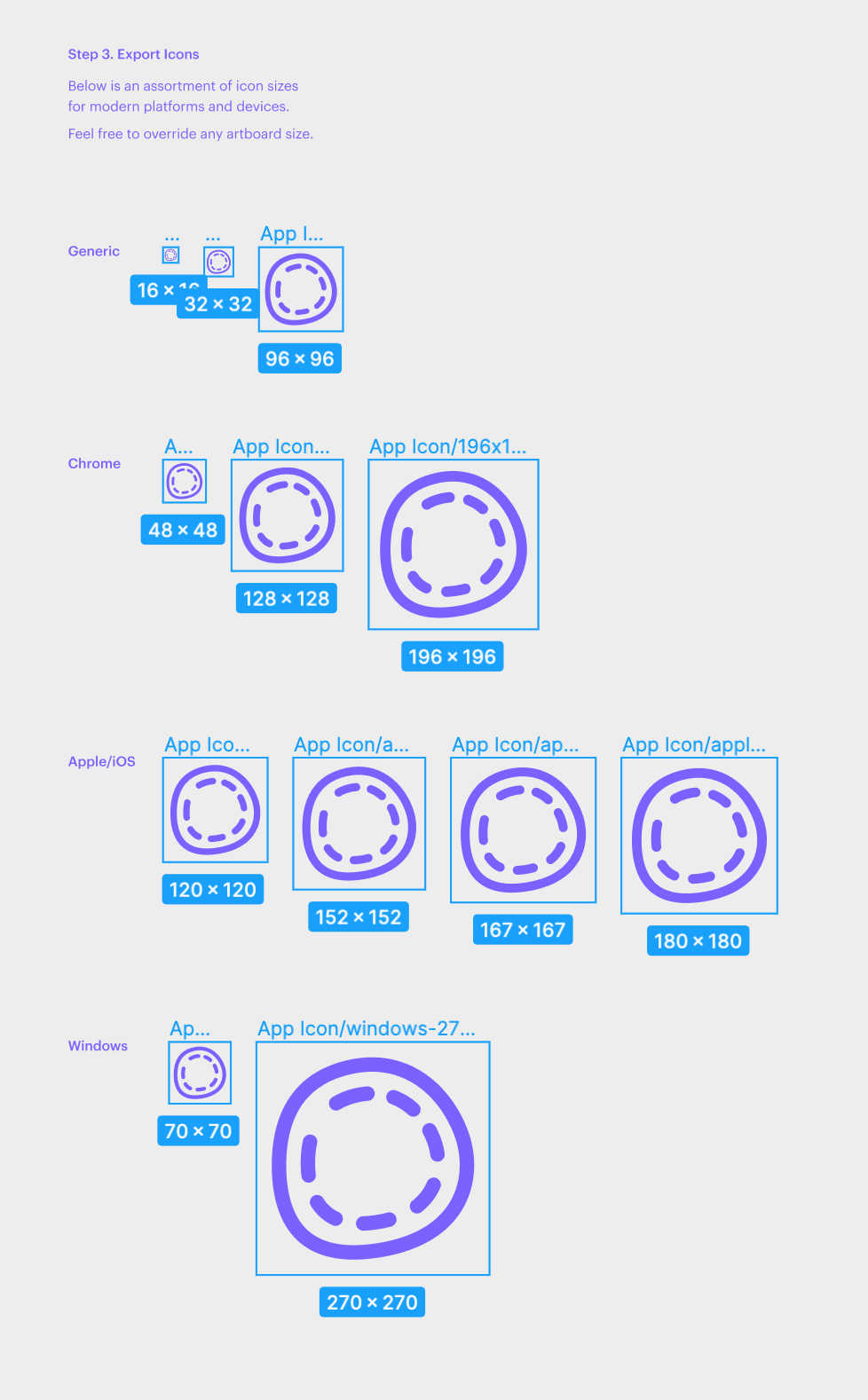
- Navigate to the 🍒 oGraph & Icons page in Figma
- Select all the icons on the right
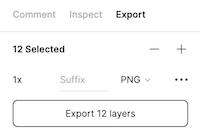
- Activate the Export tab in the sidebar
- Export with default settings to the
assetsfolder in your theme. - Run
yarn devto regenerate thefavicon.icofile, which is used as a fallback. The<head>is published automatically.
favicon.ico#
When you run yarn dev or yarn build, a favicon.ico is automatically generated for you!
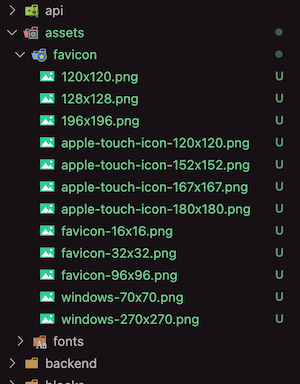
It uses the uses the pattern assets/favicon/favicon-*.png, which usually means it'll be composed using favicon-16x16.png, favicon-32x32.png and favicon-96x96.png.
Light & Dark Mode Icons#
Not all browsers support SVG favicons, but they're a great way to optionally support light/dark mode. You can right-click and 'Copy as SVG', and then add appropriate styling. Save to assets/favicon/favicon.svg, and it'll automatically be added to the <head> tag.
See below for an example:
<svg width="16" height="16" viewBox="0 0 16 16" fill="none"
  xmlns="http://www.w3.org/2000/svg">
  <style>
    path {
      fill: #000000;
    }
    @media (prefers-color-scheme: dark) {
      path {
        fill: #ffffff;
      }
    }
  </style>
  <path d="..." />
</svg>
Meta Tags#
The appropriate <link /> tags are automatically added to your <head> tag, so you don't need to worry about it. Note that these tags only appear if they're found in the correct folder (assets/favicon/).
Filenames#
The following files are expected to be found. Note that if they are missing, there are no errors!
/assets/favicons/favicon.svg
/assets/favicons/120x120.png
/assets/favicons/128x128.png
/assets/favicons/196x196.png
/assets/favicons/apple-touch-icon-120x120.png
/assets/favicons/apple-touch-icon-152x152.png
/assets/favicons/apple-touch-icon-167x167.png
/assets/favicons/apple-touch-icon-180x180.png
/assets/favicons/favicon-16x16.png
/assets/favicons/favicon-32x32.png
/assets/favicons/favicon-96x96.png
/assets/favicons/windows-270x270.png
/assets/favicons/windows-70x70.png
Screenshots of export steps#
Select all the icons, skipping the labels:
Export your selection:
Your codebase should look like this after you've exported them. Note that if you instead see an App icon folder, you should rename this to favicon and ensure that it matches as below: